
01 · Discover your collection
A visual library that stays organised
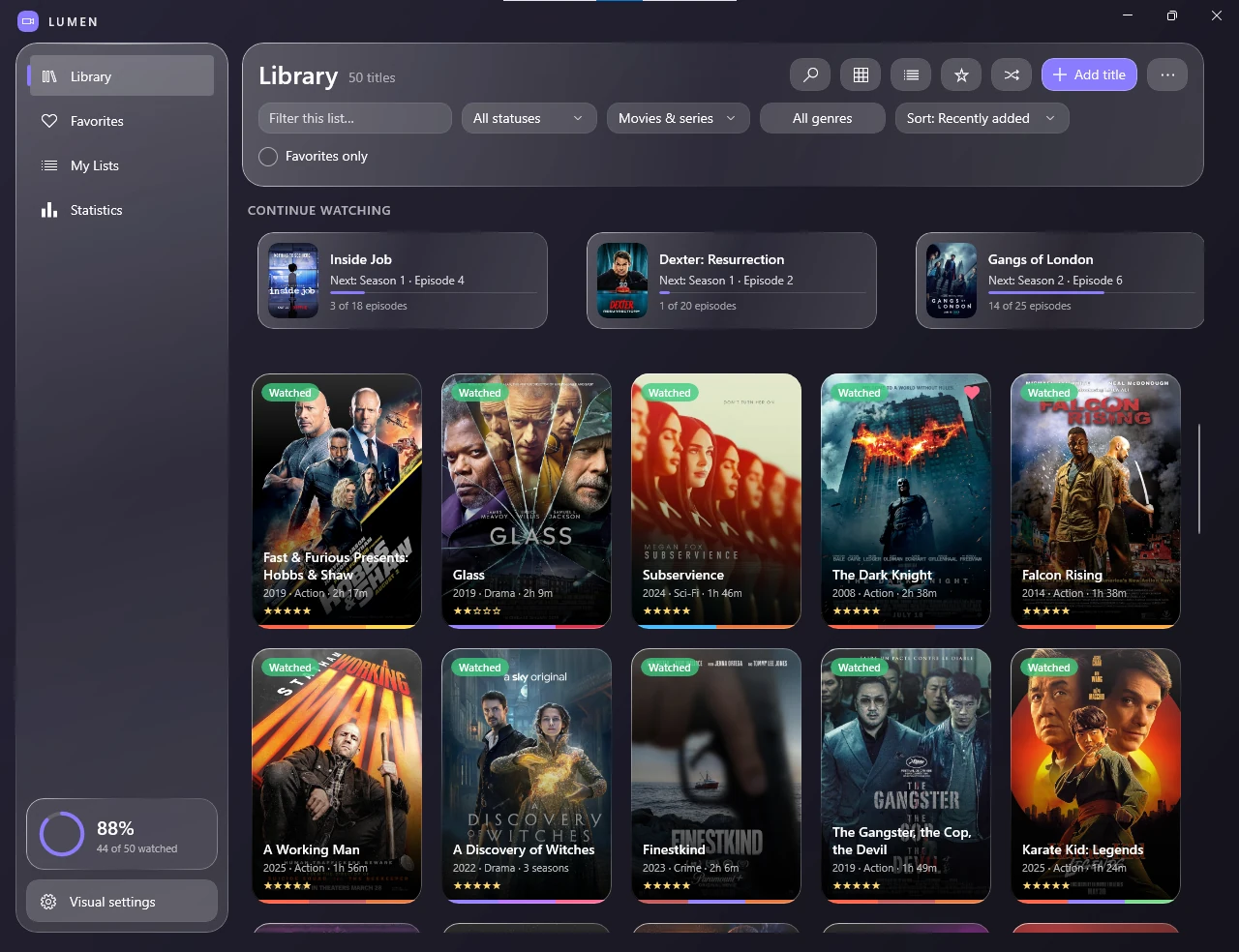
Browse movie and TV entries as artwork cards. The Library screen shows quick filters, sorting controls, recent additions and a search entry point.
Every feature below is grounded in the screens supplied with Lumen. No imagined tools, integrations or capabilities.
Browse movie and TV entries as artwork cards. The Library screen shows quick filters, sorting controls, recent additions and a search entry point.
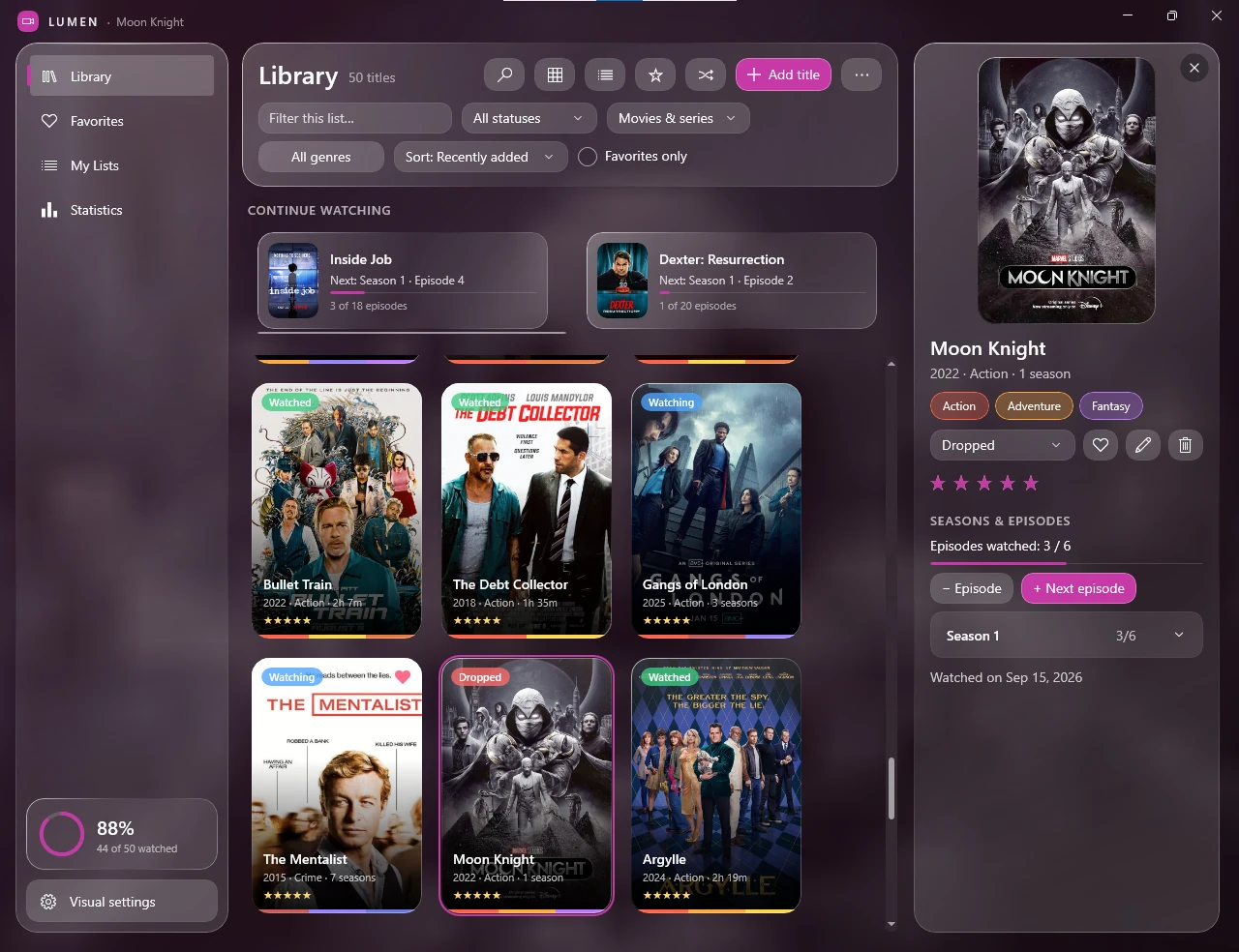
View saved title artwork, genres, status and rating alongside the title information and season or episode details shown in the selected-title panel.
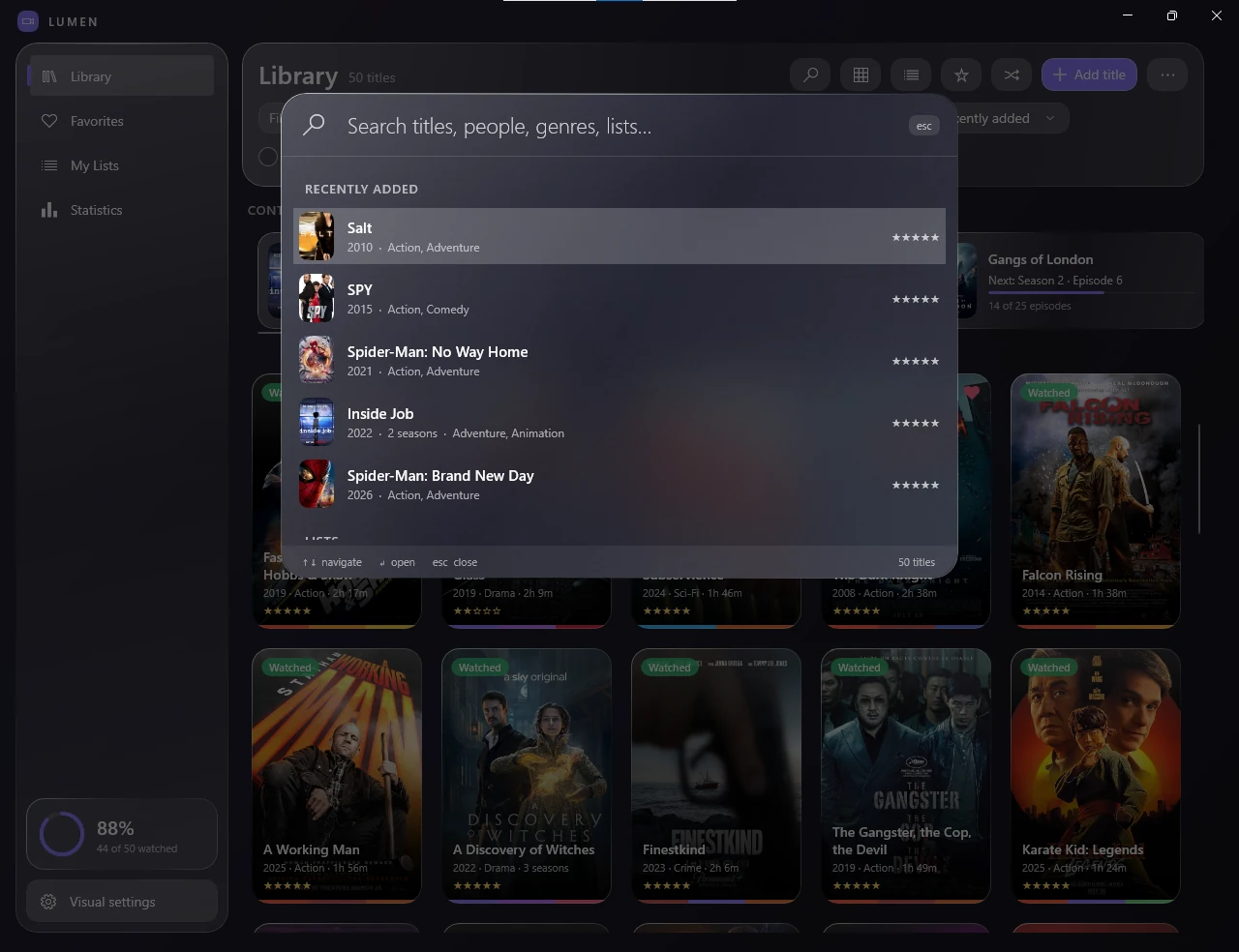
The search view includes a search field and a recent-search area with titles and quick-access controls, as shown in the supplied app screen.
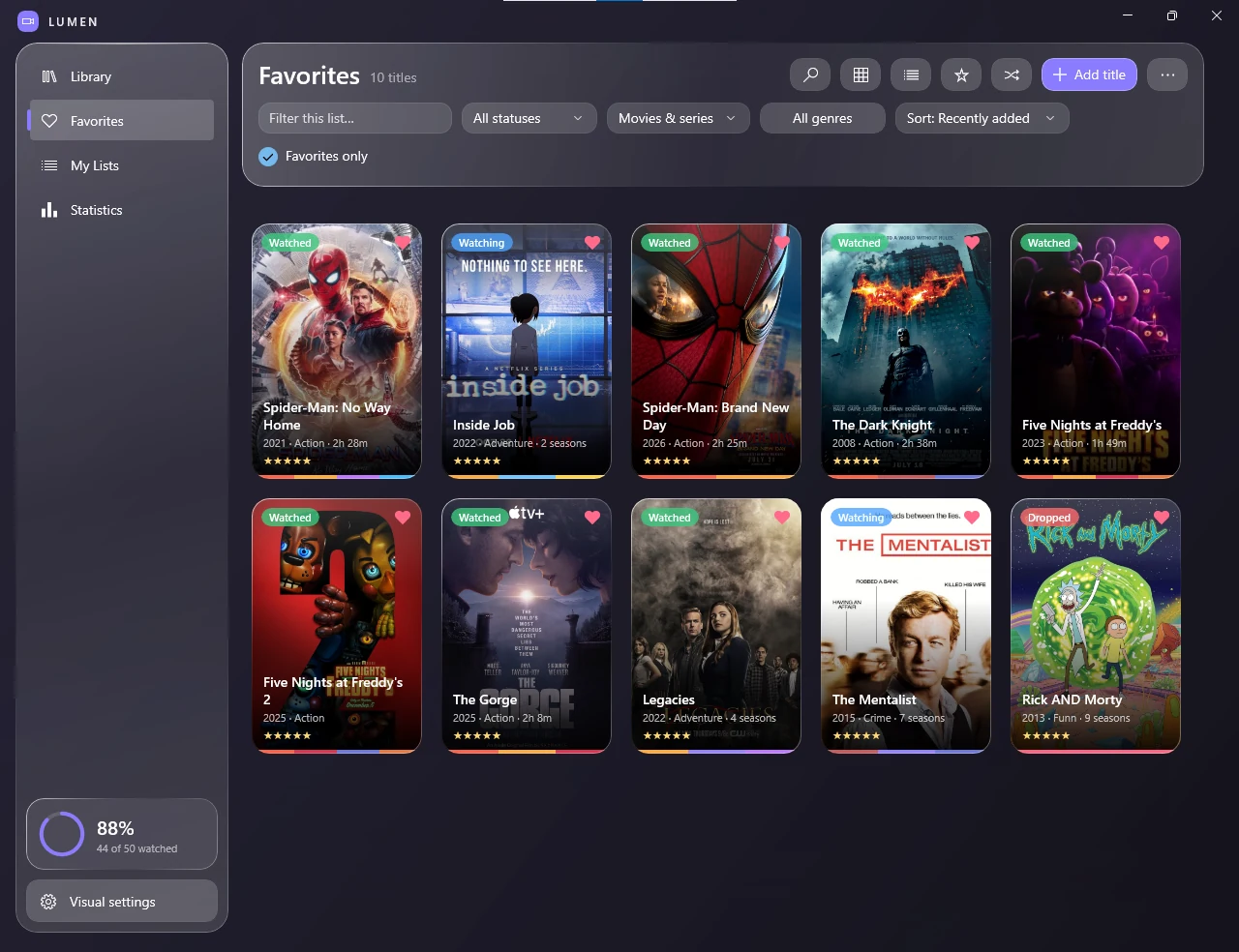
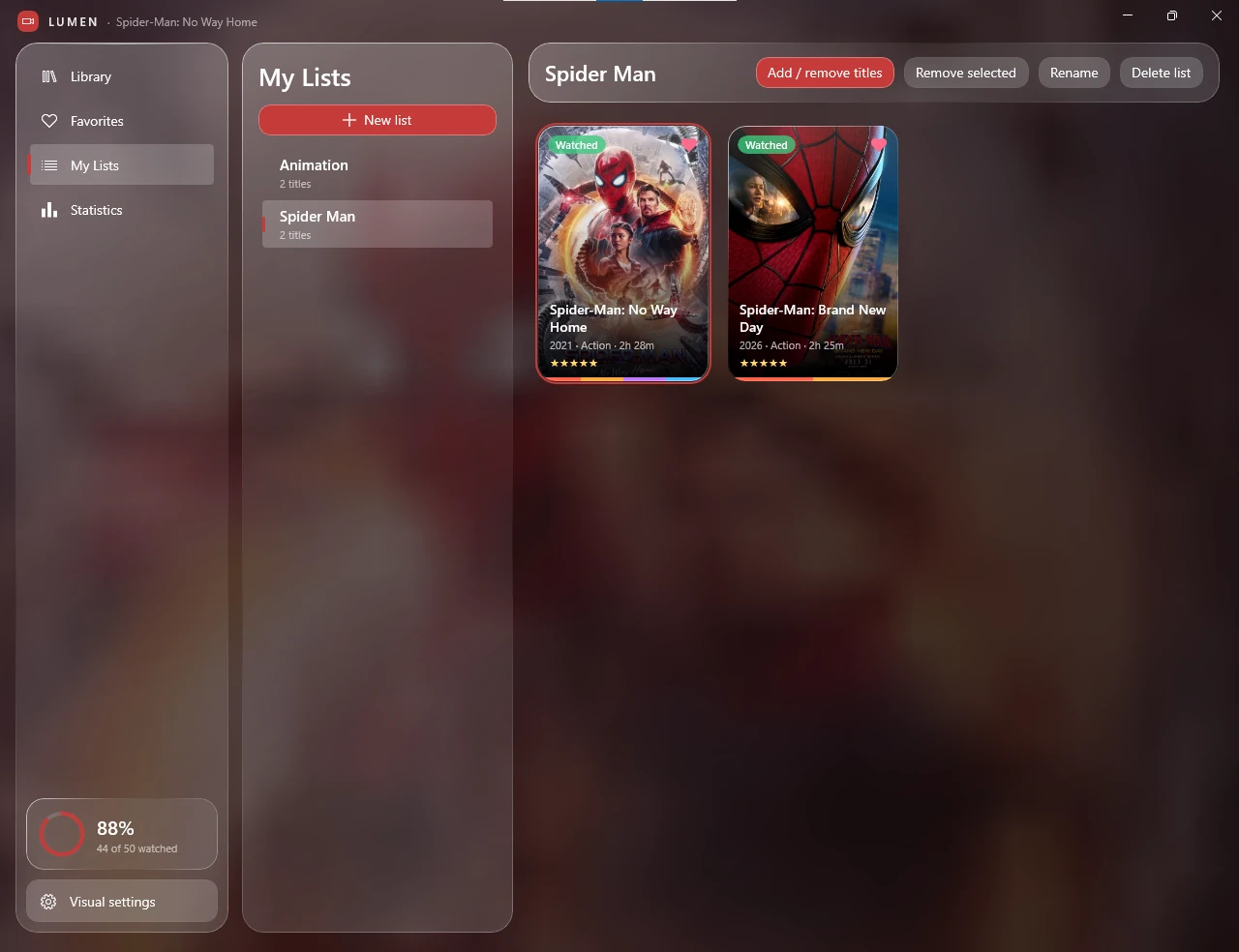
Give favourite titles their own view, and create personal lists such as the example lists shown in the app. Keep collections arranged around your own interests.
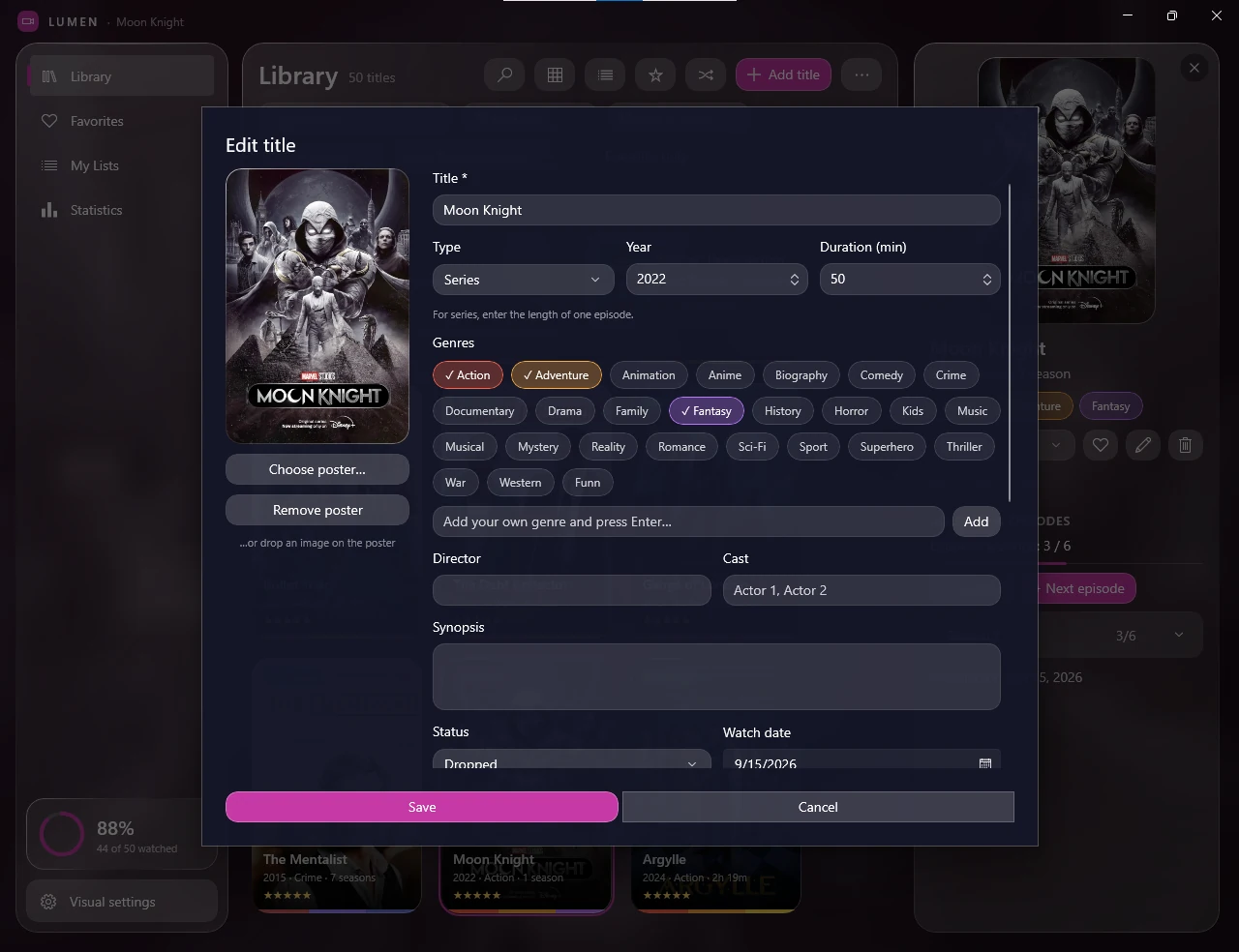
The edit form shows fields for title, type, release year, duration, genres, director, cast and synopsis, as well as status and watch date.
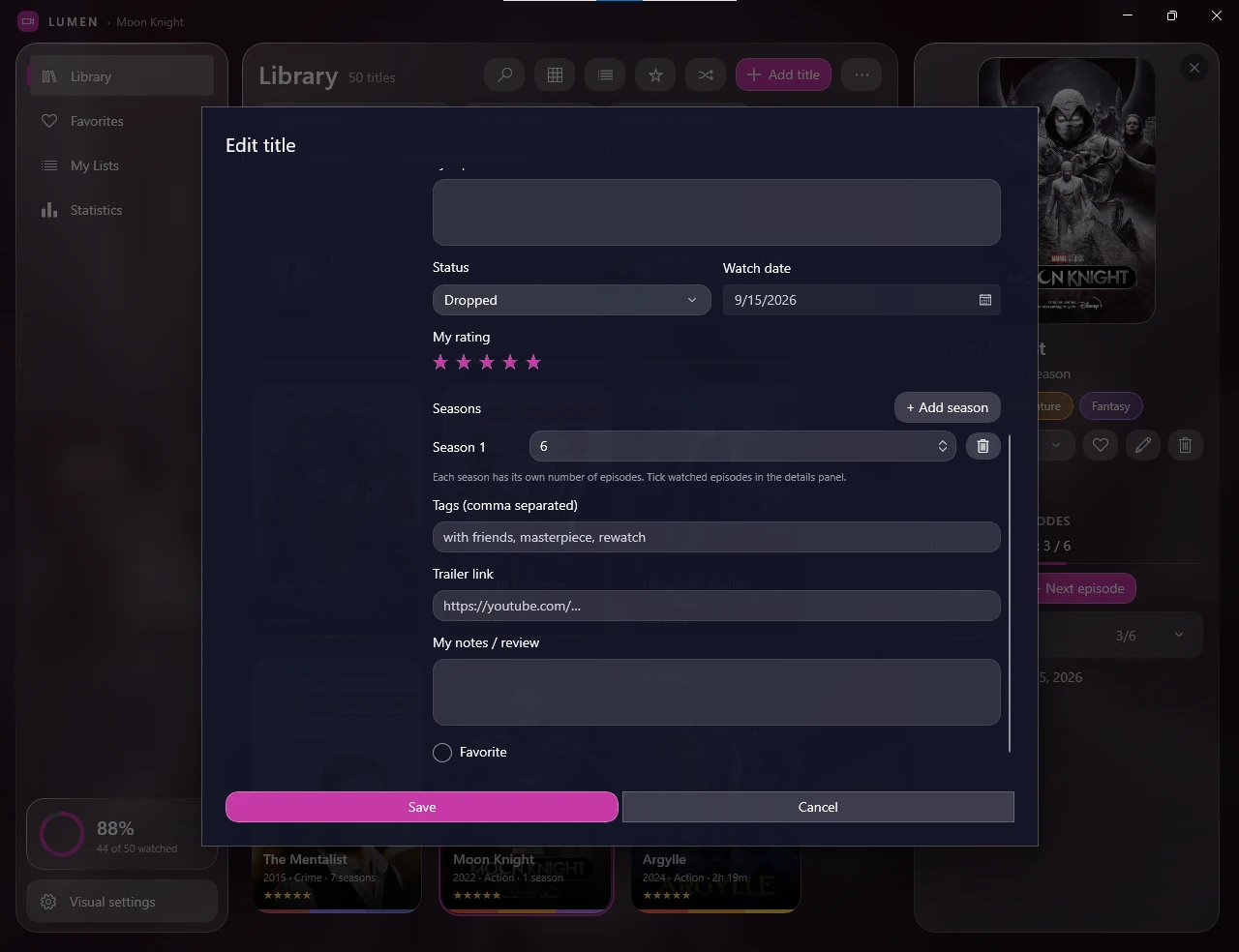
Additional edit fields include a personal rating, season and episode entries, trailer link, personal notes or review, and a favourites option.
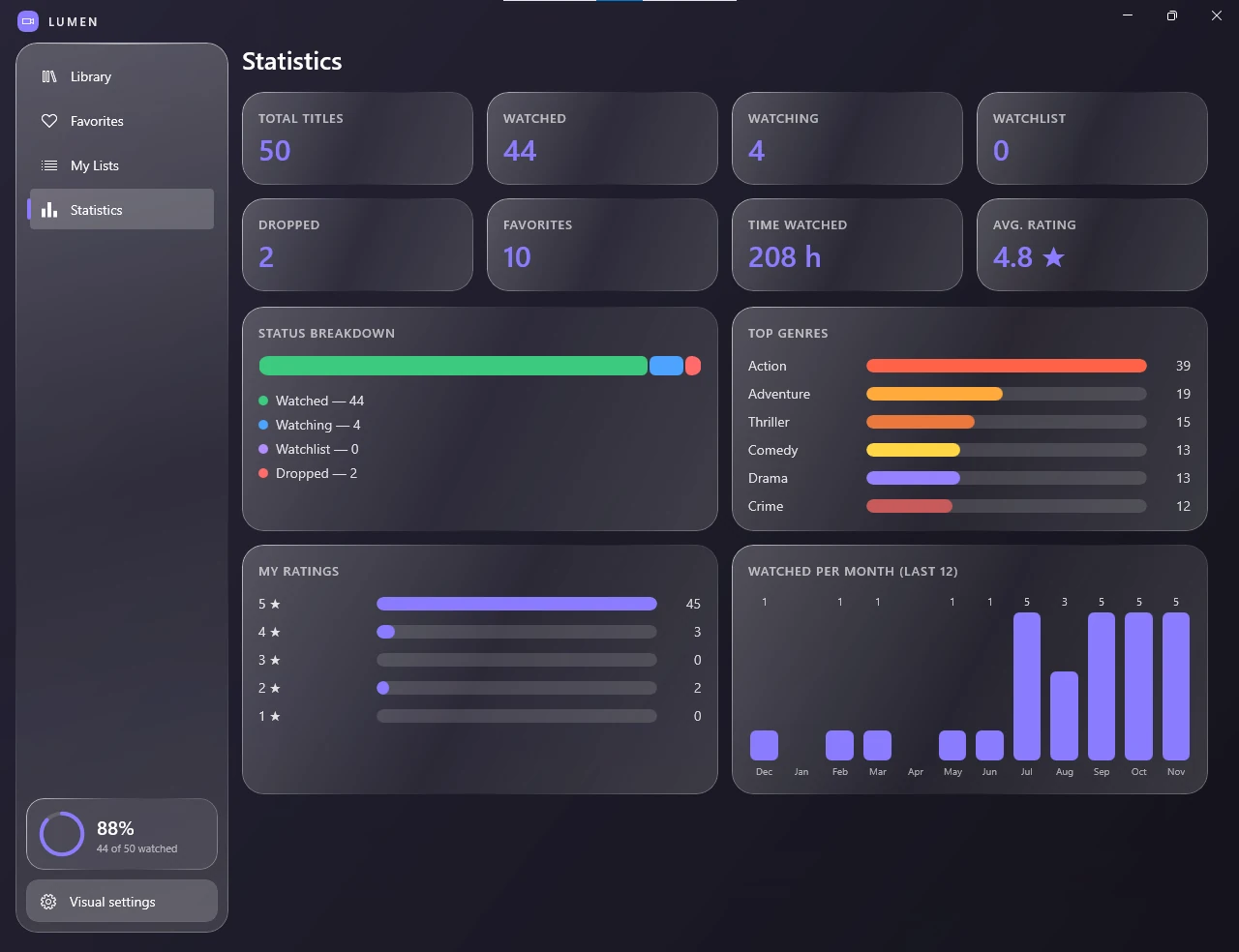
The Statistics screen presents collection totals and visual breakdowns, including status, genres, ratings and watch-time metrics.
Organise titles in named lists and switch between them from the My Lists area. The supplied example shows separate Animation and Spider-Man lists.
Browse all eight real application screenshots in the gallery.